So...What Does Responsive Design Even Mean? (Tips On Making Your Design More Mobile Friendly)

Responsiveness, as a general word, means the quality of reacting quickly. What responsive design means is that your website reacts and transforms based on how someone is viewing the site. Have you ever tried to go to a website on your phone that ISN’T mobile friendly? You are like endlessly pinching and trying to hit these tiny links and then drag, drag, drag to the right to read the whole paragraph… talk about annoying! One bad experience like that and you never try to go to that website again. Knowing this, it’s vital to make sure our blogs and websites are mobile-friendly and responsive, so that we don’t lose customers, clients, new-friends, or followers, right?

If you want to check your sites responsiveness through Google, click here.


HOW IT WORKS

In the very, very simple version of it… the grid system at play in a responsive website are based off of percentages rather than definitive pixels or other measurements. So my header might be 3x as large as my body copy, and in the code instead of saying “body copy 12px” and “header copy 36px”, it simply says, “hey whatever size that body copy is, make the header 3x as large.”


SQUARESPACE BUILT IN RESPONSIVENESS

This is part of the reason I LOVE SQUARESPACE, y’all. It’s automatic. It’s responsive without you having to lift a finger. That’s awesome. When you are designing a Squarespace site, you can pull down the top bar (it’s gray, there’s an arrow when you hover) and click to see what your website looks like via phone or tablet, as well as the desktop version. This is really important! Over 40% of my views come from mobile, so that’s 40% of people that I want to make sure can have an enjoyable experience! So throughout editing and designing I am constantly double checking through those icons and making sure things are easy to read and understand and navigate via mobile.


BEYOND JUST RESPONSIVE

So you have a responsive site, but that’s not all you should consider. The other really big, and often overlooked, thing is that HOW you use your mobile device is different than how you use your computer.

I don’t know about you, but if I am trying to go to a site and everything is taking kajillion years to load from my phone, I’m already over it and onto Instagram or the next thing. Call me a millennial, but my mind is about 100 places at once and it’s not waiting for pages to load. I’m going to go with the big assumption that most people feel this way, too. Plus, we aren’t always on free wi-fi so I don’t really want to destroy my data plan waiting for your 300dpi 18x24in photo to load.

For photos you should aim for images below 500KB in size and less than 1500px wide. So, tune down to 72dpi, because 300 doesn't matter in web. If you need a tutorial, I can help you out with that (just let me know)! Other things to consider: If you are blogging, try using excerpts and “read more” links, rather than your whole 1000 word entry. Also, check letter spacing (less than 0px usually looks terrible/illegible on mobile).


What other questions do you have about responsiveness? I’d be glad to help you out! Please let me know in the comments below! Hope everyone is having a great start of the week!


kaitlyn.jpeg

I’m Kaitlyn, your design assistant! I work with successful creative entrepreneurs to create cohesive, clean, and compelling visuals for their businesses. You can keep being the #girlboss you are (but with more time to focus on growing your empire)! Let's set up a time to chat!


What Is Lightroom & Do I Need It?

First off - Happy Friday, WOO!!! We made it! Today’s post is a lengthy one and I am talking about one of my favorite Adobe tools, Lightroom. So I know everyone knows Photoshop and Illustrator and InDesign, but Lightroom is a real asset too if you are photo-heavy in your blog.


OVERVIEW

I have a photography background and worked in a photography studio for a few years. Lightroom is, like, essential. But what about for you and your blog? It really depends on how you want to structure your work-flow, if you are using lots of pictures (shot in similar ways/lights/times), and how much you want to edit your pictures.

Lightroom comes in the “photography” pack for Adobe Creative Cloud, which is $9.99/month. If you are photography-heavy in your blog this is a fantastic deal. I use this, plus my CS6 versions of InDesign & Illustrator. Eventually I will upgrade, but for now this works for me. I love all the programs separately and for different reasons, but there were some differences between CS6 and CC for Photoshop that I really wanted access too.

But I digress. Lightroom is what we are talking about today. So, what Lightroom is great for is organizing your pictures and batch editing your pictures quickly. I mean VERY quickly. When I worked for photographers and was learning Lightroom I could color correct and batch edit an entire wedding in a few hours (and I barely knew what I was doing)! My boss, who was thebomb.com at LR could do it in less than an hour. It’s awesome, y’all. Lightroom also has some perks, in that it can be used across devices, so you can access photos from your phone or tablet.


ORGANIZING & CATALOGING

For me, I organize my photos in catalogs based off of how/where I shot. So say I took 10 different styling photos, but I did all of them on a white board set up in front of my brightest window area around the same time. Those would all go in one catalog, because I can easily edit them all the same. There is also the option of giving each “event” a catalog (which if you are a photographer would probably be wiser – so, one wedding = one catalog, one family shoot = one catalog).


SETTING UP A CATALOG

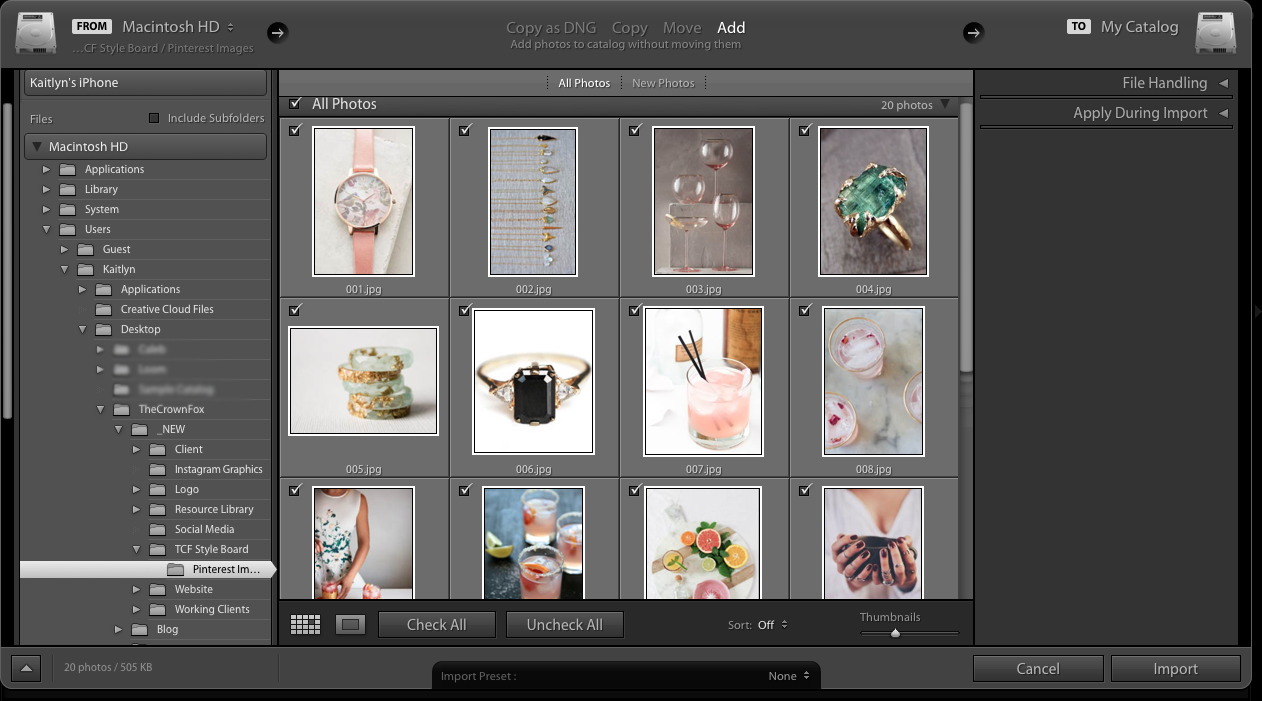
Once you open Lightroom, I go to File > New Catalog. This opens a dialogue box asking me to create a folder for this catalog, which is great, because it forces you to be organized. So I name the folder something detailed like “TheCrownFox_Client_BNR_Images” and LR does a little restart to open that catalog for you. Then, in the top right hand side, make sure you are in the library module. From there, you can import photos. For this example, I’m just going to import my images for my style inspiration board for The Crown Fox. On the left hand side you can navigate through your folders and then once you find where the photos are, you can import them.

TheCrownFox_Lightroom_Tutorial_01.png

RANKING & BATCH EDITING

Once you have them all imported (and if you are using large files, this can take a while!), from the library window is where you would sort them out. So for a photoshoot you might use 1 star for ones that seem good, 2 stars for ones that you love. You can then filter to only show 1 and 2 star images. The other photos aren’t deleted or anything, so no worries there!

The Crown Fox | www.TheCrownFox.com | Lightroom Tutorial

Once you have narrowed down the selection, toggle over in the top right hand corner to Develop. Here is where you can do batch color correcting. So, for example, if you add some warmth and some exposure to one image, just select the rest and sync it. This works great if you shot all the photos the same, so you know they all need the same treatment.

The Crown Fox | www.TheCrownFox.com | Lightroom Tutorial

I won’t go into how to actually color correct in this post, because that is a whole different (and very lengthy) topic. But, we can go over that another day, if you would like! I will say this though, any changes you make it Lightroom are non-destructive so you wont actually change your photo and can always get back to the original if need be! Phew!

So once you’ve finished up your batch fixing, you can file>export the photos and have JPGs to work with to put into your blog post or galleries or whatever you may need! Voila!


Do y’all use Lightroom ever? Let me know what other questions you have about it, and I will try my best to answer them! If you are interested I can make a video walking through all of this, too.

Otherwise - have an excellent weekend! My plans involve some client work, trying to get back into the gym routine, and flexin' my kitchen skills by making the yummiest mac-n-cheese! Oh, if you haven't checked out #1WkBrand yet, be sure to sign up below!


kaitlyn.jpeg

I’m Kaitlyn, your design assistant! I work with successful creative entrepreneurs to create cohesive, clean, and compelling visuals for their businesses. You can keep being the #girlboss you are (but with more time to focus on growing your empire)! Let's set up a time to chat!